


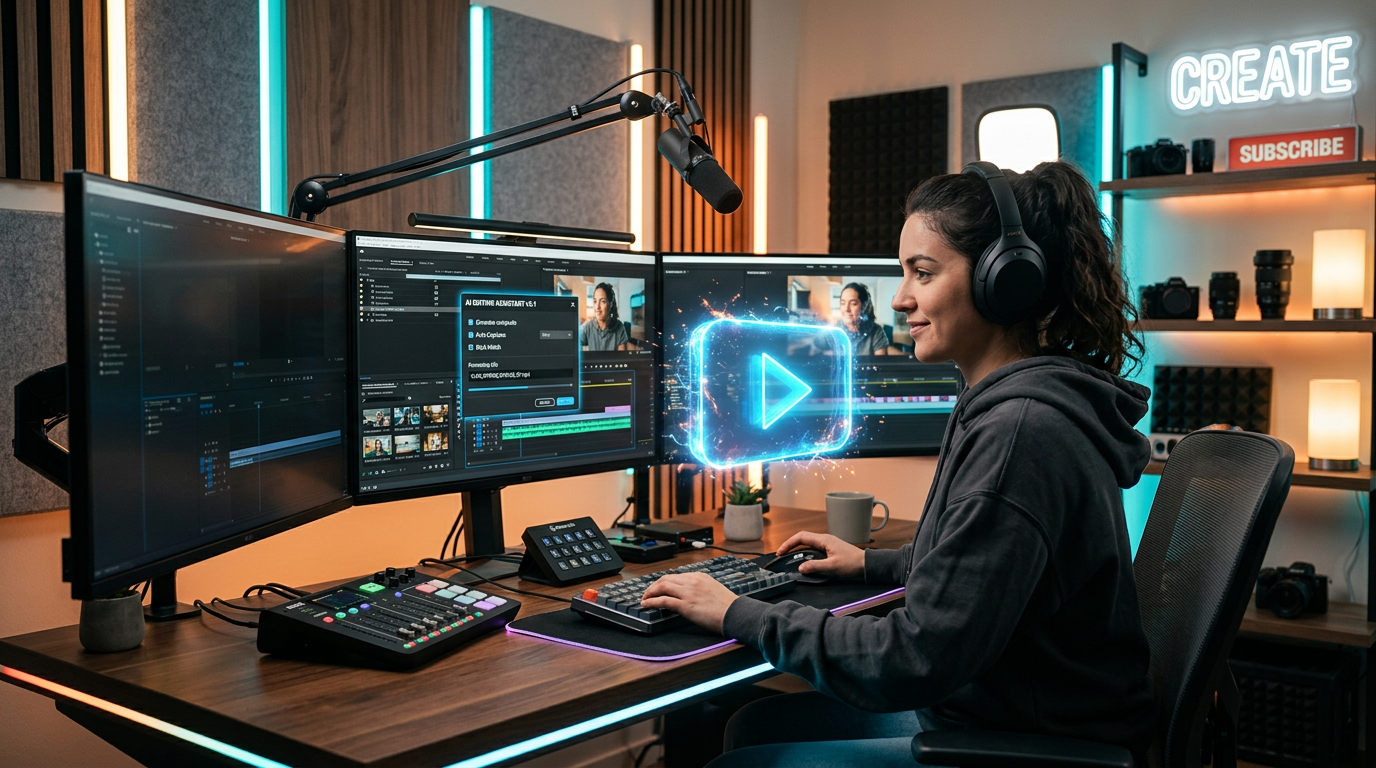
I still remember the first time I tried to start a YouTube channel.
I had ideas. I had motivation. I even had a decent phone camera.
But once I actually started, I quickly realized something nobody tells you in the beginning — making YouTube content is not just about recording videos.
It’s writing scripts, planning ideas, editing, designing thumbnails, picking titles, and staying consistent even when nothing is working.
After a few weeks, I felt stuck. I wasn’t short on ideas — I was short on time and structure.
That’s when I started using AI tools for YouTube. Not because I wanted shortcuts, but because I needed help organizing everything.
Some tools didn’t help much. Some felt overhyped. But a few actually changed how I create content.
Here’s what worked in real situations.
ChatGPT — My Script Writing and Idea Partner
ChatGPT became the first tool I started relying on for YouTube work.
Not to fully write videos for me, but to help me stop overthinking ideas.
How I actually use it:
- Generating video ideas for my niche
- Writing script outlines (not full scripts)
- Creating hooks for videos
- Rewriting awkward sentences in scripts
- Explaining topics in simple language
One of the biggest problems I had early on was overcomplicating scripts.
I would try to sound “professional,” and the result was boring videos that didn’t feel natural.
What changed things was this:
Instead of asking for a full script, I started asking:
“Give me a simple YouTube script outline with a strong hook and 5 main points”
That made my content much more structured and easier to deliver.
The real lesson here is simple — ChatGPT works best when it supports your thinking, not replaces it.
CapCut — The Editing Tool That Made Things Easier
When I started editing videos, I thought I needed expensive software.
But honestly, CapCut handled most of what I needed.
What I used it for:
- Basic video editing
- Adding captions automatically
- Cutting silent parts
- Adding transitions
- Making short-form content (YouTube Shorts)
The auto-caption feature alone saved me hours.
Before using it, I was manually typing captions, which was slow and honestly exhausting.
CapCut made the process much faster, especially for short videos.
One mistake I made early on was overusing effects and transitions.
My videos looked flashy but not clean.
Now I focus more on clarity than decoration.
Canva — Thumbnail Design Without Stress
Thumbnails are one of those things I underestimated at the beginning.
I used to think “content is more important than thumbnail,” but I quickly realized no one clicks if the thumbnail doesn’t look good.
That’s where Canva helped.
What I use it for:
- YouTube thumbnails
- Channel banners
- Simple branding designs
- Text overlays for videos
The biggest advantage is speed.
Instead of designing from scratch, I use templates and just adjust colors, text, and images.
One important thing I learned:
A clean, simple thumbnail performs better than a crowded one.
VidIQ — Understanding What People Actually Search
At one point, I was uploading videos randomly without thinking about search intent.
That’s when I started using VidIQ.
What it helped me with:
- Finding video ideas with search demand
- Understanding keyword competition
- Suggesting better titles
- Basic SEO guidance for YouTube
The biggest change it brought was clarity.
Instead of guessing what to make, I started focusing on what people are actually searching for.
But I also learned something important:
Tools can suggest ideas, but you still need to create content in your own style.
Otherwise, your videos feel generic.
Pictory AI — Turning Ideas into Video Content Faster
I tested Pictory when I wanted to experiment with faceless videos.
It converts text into video format using stock footage and AI voice.
What I used it for:
- Turning blog ideas into videos
- Creating simple explainer videos
- Testing content ideas quickly
- Repurposing written content
It’s useful if you want to produce content quickly without filming everything.
But the downside is obvious — videos can feel less personal if overused.
So I treat it more as an experimental tool, not my main content method.
TubeBuddy — Small Tool, Big Help for Optimization
TubeBuddy is one of those tools that doesn’t feel exciting at first, but becomes useful over time.
What I use it for:
- Tag suggestions
- Title optimization
- Basic SEO scoring
- Competitor analysis
It helped me understand why some videos perform better than others.
But one thing I realized:
SEO alone doesn’t make a video successful. Retention and content quality matter more.
Common Mistakes I Made Using AI Tools for YouTube
When I started combining AI tools with YouTube, I made a few mistakes that actually slowed me down.
1. Over-planning instead of creating
I used to spend too much time generating ideas and not enough time actually recording videos.
AI made planning easier, but I had to remind myself that execution matters more.
2. Relying too much on AI scripts
When I followed AI-generated scripts word-for-word, my delivery felt unnatural.
Now I only use scripts as a guide, not something to memorize.
3. Ignoring my own style
At one point, all my content started sounding similar because I was copying AI tone too closely.
I had to bring my own voice back into it.
That made my videos feel more real.
4. Trying too many tools at once
I tested multiple tools at the same time and ended up confused.
Now I keep it simple:
- ChatGPT for ideas
- CapCut for editing
- Canva for thumbnails
- VidIQ for SEO
That’s enough for most YouTube work.
A Simple YouTube Workflow That Actually Works
After testing everything, I now follow a very simple process:
Step 1: Idea research
Use VidIQ or ChatGPT to find video ideas.
Step 2: Script outline
Use ChatGPT to structure the video.
Step 3: Record content
Keep it natural, not robotic.
Step 4: Edit video
Use CapCut for editing and captions.
Step 5: Create thumbnail
Use Canva for clean, clickable design.
Step 6: Upload and optimize
Use TubeBuddy for SEO suggestions.
This workflow keeps things balanced and prevents burnout.
Final Thoughts
AI tools don’t make YouTube easy.
They just remove unnecessary friction.
The real work is still:
- creating valuable content
- improving storytelling
- and staying consistent
But once you use the right tools properly, the process becomes much smoother.
Instead of getting stuck in editing, planning, or design issues, you can focus more on the actual content — which is the part that really matters.