

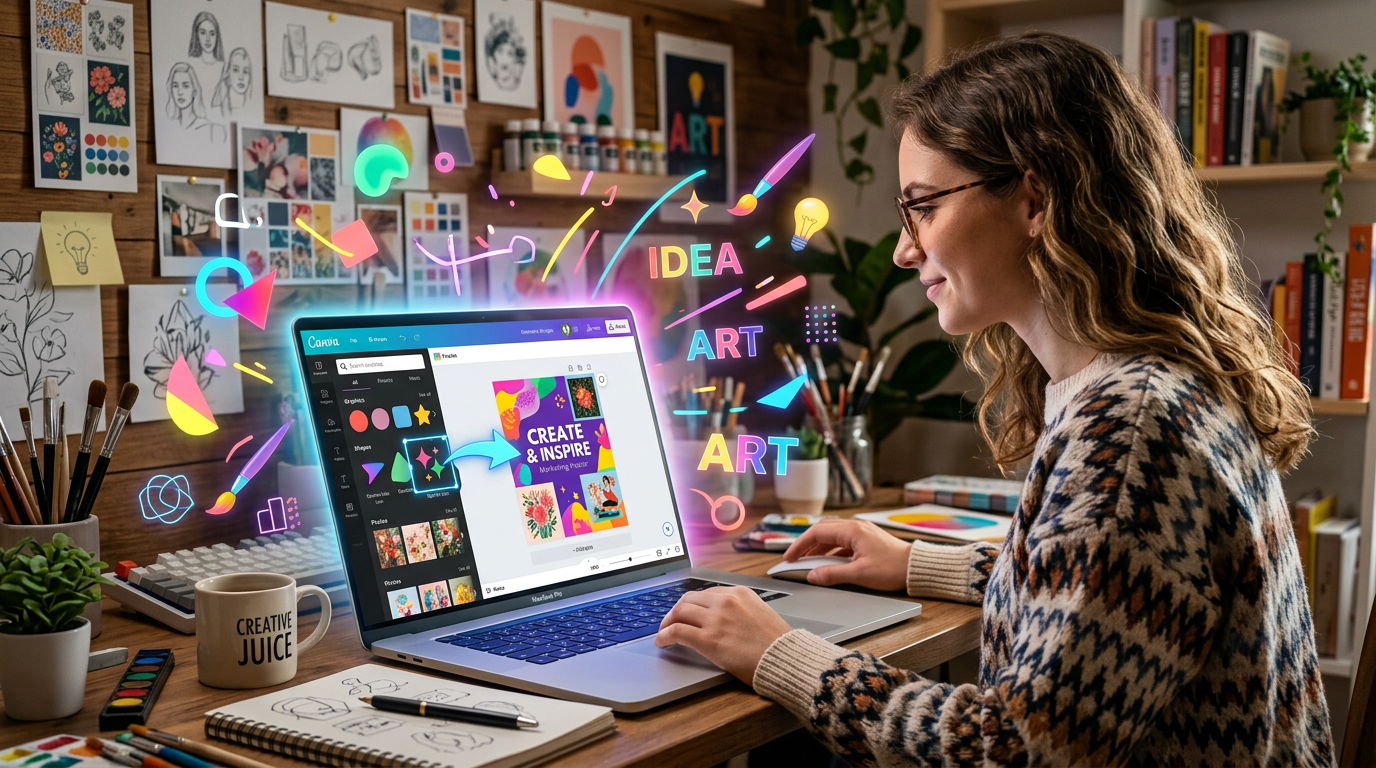
The first time I opened Canva, I honestly thought:
“This looks way too professional for me.”
There were templates everywhere, design tools I didn’t understand, animations, editing options… and I had no idea where to start.
At that point, I just needed simple things:
- better Instagram posts
- cleaner thumbnails
- decent-looking presentations
- and graphics that didn’t look homemade in the worst way possible
The problem was I had zero design experience.
Then Canva started adding AI tools, and surprisingly, that’s when things became much easier for me.
Instead of designing everything manually, I could suddenly:
- generate images
- create text automatically
- remove backgrounds
- resize content instantly
- and speed up work that normally took hours
After using Canva AI tools for blog graphics, social media content, thumbnails, and small projects, I realized most beginners are overcomplicating the process.
You don’t need to become a professional designer to create good-looking content.
Here’s what actually helped me use Canva AI tools effectively.
Canva AI Became Useful Once I Stopped Trying to Design Everything From Scratch
This was my biggest mistake in the beginning.
I thought “real design” meant building everything manually.
So I kept:
- changing fonts constantly
- moving elements around endlessly
- experimenting with random colors
- and wasting time trying to make things perfect
The results usually looked messy.
Then I realized Canva works best when you simplify the process.
Instead of starting from a blank page, I started:
- using templates
- editing existing layouts
- and letting AI handle repetitive tasks
That made content creation much faster and cleaner.
Magic Design — The Feature That Saved Me the Most Time
Magic Design was probably the first Canva AI tool that genuinely impressed me.
Instead of manually building layouts, Canva generates design suggestions automatically.
How I used it:
- social media posts
- presentation slides
- YouTube thumbnails
- blog graphics
I’d upload an image or type an idea, and Canva would create multiple design versions instantly.
Not all of them looked perfect, obviously.
But even average suggestions gave me a much stronger starting point than a blank page.
That alone reduced a lot of creative frustration.
Magic Write — Surprisingly Helpful for Captions and Ideas
At first, I ignored Magic Write because I thought:
“I already have ChatGPT.”
But after testing it inside Canva, I realized it’s actually useful for quick content creation while designing.
What I used it for:
- Instagram captions
- short marketing text
- presentation descriptions
- title ideas
- content brainstorming
The biggest advantage is convenience.
Instead of switching between multiple apps, everything happens inside Canva.
That workflow feels smoother when working quickly.
Background Remover Became My Favorite Feature Almost Immediately
Before AI tools, removing backgrounds from images used to feel annoying.
I tried free apps, websites, and manual editing… and most results looked rough.
Canva’s background remover made that process ridiculously simple.
What I used it for:
- product images
- profile photos
- thumbnails
- social media graphics
One click and the background disappears.
Honestly, this was one of those features that instantly saved real time.
Especially for beginners who don’t know Photoshop.
Text to Image — My First Real Experience With AI Art
When Canva added AI image generation, I didn’t expect much.
But after experimenting with prompts, it became surprisingly useful for content creation.
What I generated:
- blog visuals
- abstract backgrounds
- social media graphics
- thumbnail concepts
- creative illustrations
At first, my prompts were too simple.
I’d type:
“Cool background”
And the results looked random.
Later I learned that detailed prompts work much better.
Example:
Instead of:
“Modern office”
I started using:
“Modern minimalist office workspace with warm lighting and clean desk setup”
The quality difference was huge.
Magic Resize — The Most Underrated Canva AI Tool
This feature saved me from recreating the same design multiple times.
Example:
I’d create one Instagram post, then resize it instantly for:
- YouTube community posts
- stories
Before this, I was manually adjusting every design.
That wasted so much unnecessary time.
Now one design can work across multiple platforms within minutes.
How I Actually Use Canva AI Tools Step by Step
After lots of experimenting, I naturally developed a simple workflow.
Step 1: Start With a Template
I almost never start from a blank canvas anymore.
Templates speed everything up and help maintain good structure.
Then I customize:
- colors
- text
- images
- spacing
Simple adjustments usually work better than total redesigns.
Step 2: Use AI for Ideas, Not Final Perfection
AI suggestions are helpful, but I rarely use them exactly as generated.
Instead, I treat them like creative starting points.
This keeps designs feeling more natural and personal.
Step 3: Keep Designs Clean
This lesson took me time to learn.
At first, I overloaded everything with:
- effects
- animations
- fonts
- colors
Now I follow a simpler rule:
if the design feels crowded, remove something.
Clean designs almost always look more professional.
Step 4: Generate Multiple Variations
Instead of trying to make one design perfect immediately, I generate multiple versions.
Then I compare:
- readability
- layout
- visual balance
- thumbnail visibility
This process is much faster than endlessly editing one version.
Step 5: Adjust for Platform Size
One thing beginners forget:
a design that looks good on desktop may look bad on mobile.
I always check:
- text visibility
- spacing
- thumbnail readability
- mobile appearance
Especially for social media content.
Real Ways Canva AI Helped Me Personally
Once I got comfortable with Canva AI tools, I started using them constantly.
For blogging:
- featured images
- article banners
- Pinterest graphics
For YouTube:
- thumbnails
- channel banners
- community posts
For social media:
- Instagram posts
- stories
- quote graphics
For personal projects:
- resumes
- presentations
- simple branding content
The biggest improvement wasn’t creativity.
It was speed.
Common Mistakes I Made Using Canva AI Tools
I definitely made beginner mistakes early on.
Here are the biggest ones.
1. Trying to over-design everything
Too many effects make designs look amateur.
Simple usually works better.
2. Using too many fonts
At one point, every design had 4 different fonts.
Now I usually stick to 1 or 2.
3. Depending completely on AI-generated layouts
AI helps, but manual adjustments still matter.
Good design still needs human judgment.
4. Ignoring consistency
Random colors and styles make branding look messy.
Consistency matters more than complexity.
5. Forgetting readability
A beautiful design becomes useless if text is hard to read.
Now clarity always comes first.
What Actually Improved My Canva Designs the Most
Surprisingly, it wasn’t learning advanced design theory.
The biggest improvement came from:
- simplifying layouts
- reducing clutter
- using better prompts
- and focusing on readability first
That alone made my content look much cleaner and more professional.
Final Thoughts
Canva AI tools made design feel much less intimidating for me.
Not because the AI magically creates perfect graphics every time, but because it removes a lot of the frustrating manual work that slows beginners down.
The real improvement happens when you combine:
- simple design choices
- clear content
- and AI-assisted speed
Once that balance clicks, creating graphics becomes much faster, easier, and honestly more enjoyable — even if you have no design background at all.