


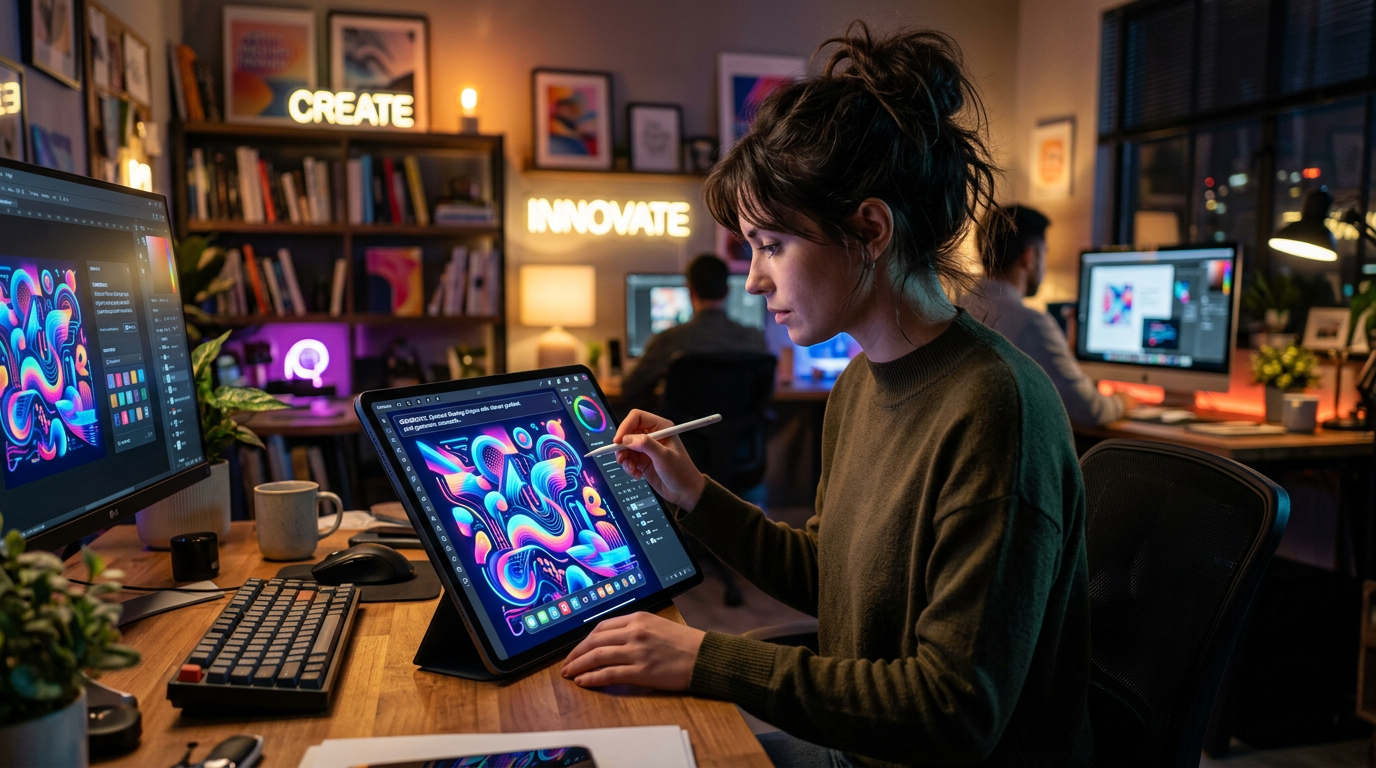
I didn’t realize how frustrating “simple design work” could be until I tried creating my first proper thumbnail.
It was supposed to be simple — just a clean banner and a few social media posts. I thought it would take maybe 30–40 minutes.
It didn’t.
I ended up spending hours just trying to align text properly, choose colors that didn’t look weird together, and find images that didn’t look low quality or random.
The frustrating part wasn’t creativity — it was execution. I had ideas in my head, but turning them into something visually good was a completely different story.
That’s when I started experimenting with AI design tools. Not because I wanted shortcuts, but because I needed something that could help me turn ideas into visuals faster.
Some tools were useless for me. Some felt overhyped. But a few actually changed how I approach design work.
Here’s what worked in real usage.
Canva — The Tool That Made Design Feel Simple Again
Canva was the first tool that actually made me feel like I could design something without struggling for hours.
Before that, I used to think design required advanced software and technical skills. Canva proved that wrong pretty quickly.
What I actually use it for:
- YouTube thumbnails
- Instagram posts
- Blog banners
- Simple posters and flyers
- Presentation slides
The biggest advantage is not just templates — it’s speed.
Instead of starting from a blank page, I pick a layout and just adjust it according to my idea.
But I made a mistake early on.
I used to over-customize everything — too many fonts, too many colors, too many elements. My designs ended up looking cluttered instead of clean.
Now I follow a simple rule:
less is usually better.
Clean designs perform much better than complicated ones.
Adobe Express — More Polished Than I Expected
I tried Adobe Express after using Canva for a while, mostly out of curiosity.
I didn’t expect much, but the output surprised me.
It feels slightly more “professional” in terms of design style, especially for branding-type work.
What I used it for:
- Social media graphics
- Simple marketing visuals
- Brand-style posts
- Quick video graphics
What I noticed is that Adobe Express tends to suggest more structured and balanced layouts compared to random experimentation.
It’s not necessarily better than Canva — just different.
If Canva feels like creative freedom, Adobe Express feels more controlled and structured.
Figma + AI Plugins — Best for Real Design Thinking
Figma is not exactly a “beginner tool,” but once I started using it, I understood why designers prefer it.
It’s more about precision and structure than quick visuals.
Where AI comes in:
- Layout suggestions
- Auto-generating UI components
- Speeding up design prototypes
- Improving spacing and alignment
I used it mainly for UI concepts and layout practice.
But I’ll be honest — it took time to get comfortable with it.
Unlike Canva, you can’t just drag and drop everything without thinking. You need some understanding of design structure.
Once I got used to it, though, it felt powerful.
Designs.ai — Fast Visual Creation for Ideas
Designs.ai is one of those tools I tested when I wanted something quick without thinking too much about design rules.
It’s useful when you just want to generate visuals fast.
What I used it for:
- Logo ideas
- Simple marketing designs
- Quick social media posts
- Basic branding experiments
The results are not always perfect, but it helps when you’re exploring ideas and don’t want to spend too much time manually designing.
One lesson I learned here:
AI-generated designs are best used as starting points, not final outputs.
Microsoft Designer — Surprisingly Good for Simple Designs
I didn’t expect much from Microsoft Designer at first, but it turned out to be very beginner-friendly.
It’s very text-to-design focused, which makes it easy when you don’t have strong design skills.
What stood out:
- Clean, modern layouts
- Easy prompt-based design generation
- Fast results
- Good for social media content
I used it mostly for quick posts when I didn’t want to spend time adjusting elements manually.
The downside is that customization is more limited compared to Canva or Figma.
But for speed, it works well.
Remove.bg — Small Tool, Big Time Saver
This is not a full design tool, but it’s something I use almost every time I create visuals.
It removes backgrounds from images in seconds.
Why it matters:
Before using it, I used to manually erase backgrounds or search for transparent images online.
Now it takes a few seconds.
It might seem like a small feature, but it saves a lot of time in real design workflows.
Common Mistakes I Made While Using AI Design Tools
After using these tools for a while, I realized most issues weren’t with the tools themselves.
They were with how I used them.
1. Overloading designs with elements
At the beginning, I used too many fonts, colors, and shapes because I thought it looked “creative.”
It didn’t.
It looked messy.
Now I focus on simplicity and spacing more than decoration.
2. Depending fully on AI-generated designs
AI tools can generate layouts quickly, but if you don’t adjust them, they often feel generic.
I always tweak:
- spacing
- colors
- text hierarchy
That makes a big difference.
3. Ignoring consistency
At one point, every design I made looked different because I was experimenting too much.
Later I learned that consistency matters more than variety — especially for branding.
Now I stick to:
- same color palette
- similar fonts
- consistent style
4. Thinking tools replace design thinking
AI tools make things faster, but they don’t replace understanding basic design principles.
Even simple things like alignment and contrast matter a lot.
Simple Workflow I Use Now for Design
After testing different tools, I now follow a very simple process:
Step 1: Idea creation
I first decide what I want to design and the purpose behind it.
Step 2: Quick layout generation
I use Canva or Microsoft Designer to create a base.
Step 3: Refinement
I adjust spacing, fonts, and colors manually.
Step 4: Final check
I make sure everything looks clean and readable.
This workflow keeps things fast without losing quality.
Final Thoughts
AI tools for design don’t replace creativity.
They just remove the technical struggle of turning ideas into visuals.
Instead of spending most of your time fighting layouts, alignment, and tools, you can focus more on the actual idea behind the design.
And once that part becomes easier, designing stops feeling like a technical task and starts feeling more natural and creative.